pm
Unix-style password manager written in Go to save your data with OpenPGP encryption
About pm
Password Manager


Features • Requirements • Installation • Usage
pm is a Unix-style password manager written in Go that securely stores your data using OpenPGP, with support for hardware-backed keys such as YubiKey.
[!WARNING] This project is under active development and may be unstable. Use at your own risk.
Features
- Simple Unix-style command line interface
- OpenPGP encryption (supports smartcards like YubiKey)
- Save sensitive data and files
- Password generation
- 2FA/OTP/TOTP support
- Clipboard integration
- QR code generation
Requirements
- GnuPG (gpg) installed and available in your
PATH - An OpenPGP key pair (public + private key)
- Optional: a hardware security key (e.g. YubiKey) for smartcard support
Installation
macOS
Using Homebrew:
brew install nicola-strappazzon/tap/password-manager
xattr -d com.apple.quarantine /opt/homebrew/bin/pm
pm completion bash > /usr/local/etc/bash_completion.d/pm
Linux
curl -sL https://github.com/nicola-strappazzon/password-manager/releases/latest/download/password-manager_linux_amd64.tar.gz | tar -xz
sudo mv pm /usr/local/bin/pm
pm completion bash > ~/.local/share/bash-completion/completions/pm
For ARM64:
curl -sL https://github.com/nicola-strappazzon/password-manager/releases/latest/download/password-manager_linux_arm64.tar.gz | tar -xz
sudo mv pm /usr/local/bin/pm
pm completion bash > ~/.local/share/bash-completion/completions/pm
Using Go
go install github.com/nicola-strappazzon/password-manager@latest
The binary will be placed in your GOBIN directory, which defaults to ~/go/bin. Depending on how Go is installed, this directory may or may not be in your PATH.
Setup
Before using it, you must configure the application. You need to create an OpenPGP key pair. If you already have your own keys, you can use them as well.
pm setup
This command stores your OpenPGP recipient in ~/.password-manager/.gpg-id.
Usage
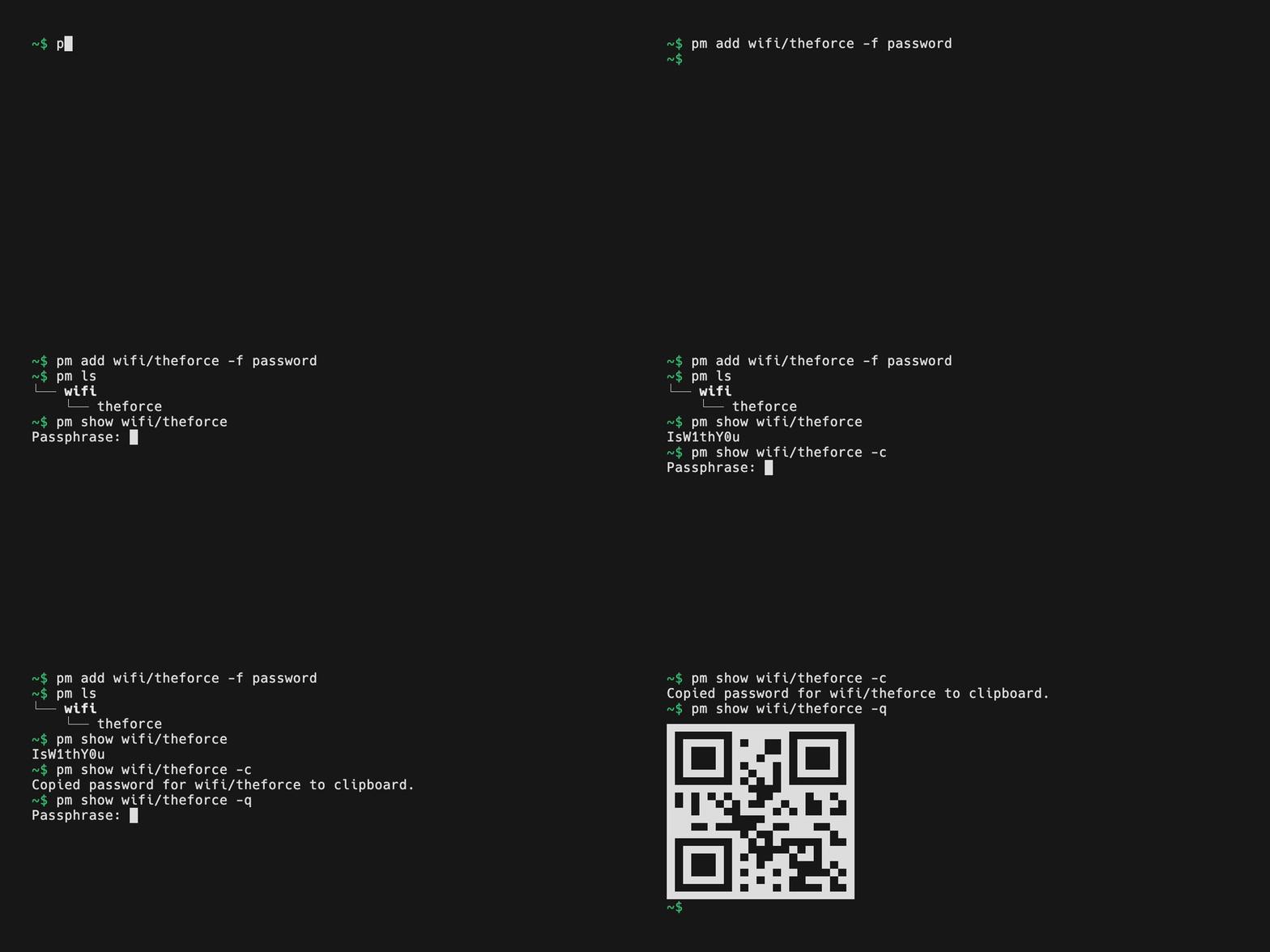
Using it is very simple. Here are some examples. If you have questions, you can run pm help for more details.
# List all items
pm ls

# Add a new item
pm add personal/github -f username -v john
pm add personal/github -f password

# Show the password
pm show personal/github

# Show all fields
pm show personal/github -a

# Copy the password to clipboard
pm show personal/github -c

# Generate QR Code to share
pm show personal/github -q

# Generate an OTP code
pm otp personal/github

# Generate a random password
pm generate

# Remove an item
pm remove personal/github
Frequently Asked Questions
What is pm?
pm is a Security library for the Go programming language. Unix-style password manager written in Go to save your data with OpenPGP encryption
How do I install pm?
Install pm with the Go module system using `go get nicola-strappazzon/password-manager`. Check the repository for the current installation instructions.
What category does pm belong to?
pm is listed under Security, specifically Security.